

Getting Started
Login to ActiveCampaign and navigate to automations.
Step 1
Select "Create an automation" and select the first option "Start from Scratch".

Step 2
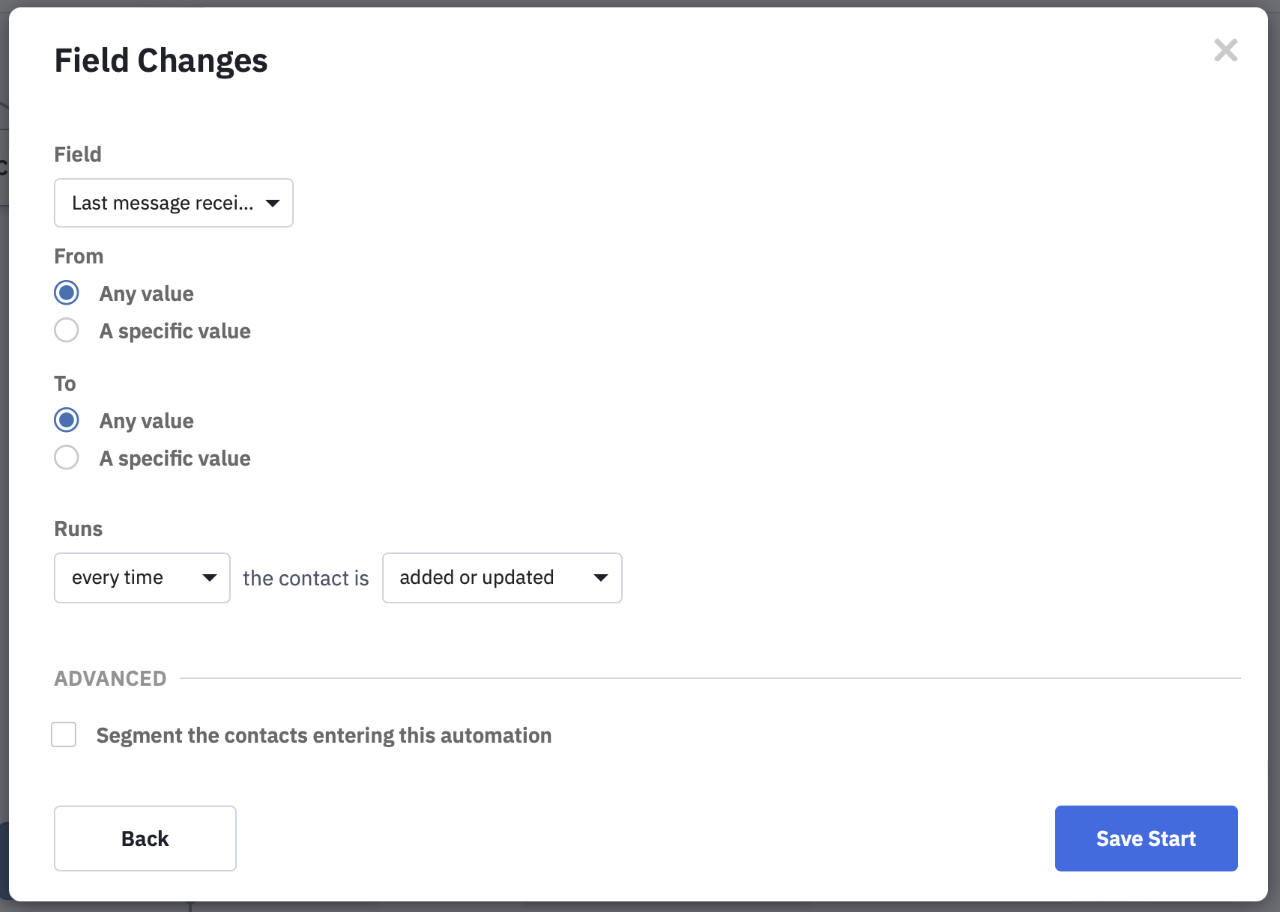
Next, select "Any Value" and the appropriate "Runs" condition for your use case. In this example, we will choose "Every time".
Step 3
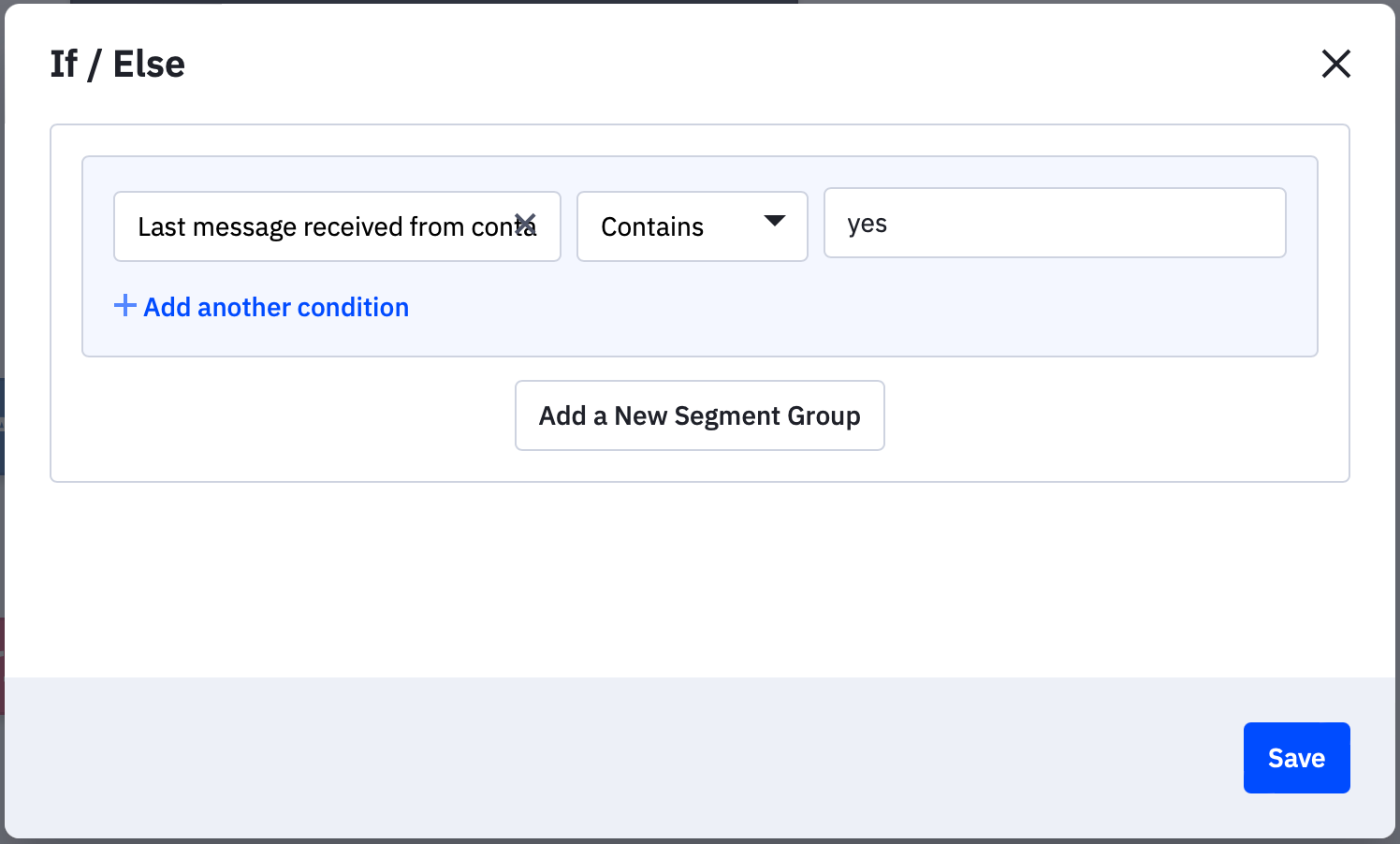
The "Contains" operator is recommended as it isn't case sensitive. For example, you can use keywords such as "Yes", "No", "Stop", and so on.
Step 4
When complete, your automation should look something like this:
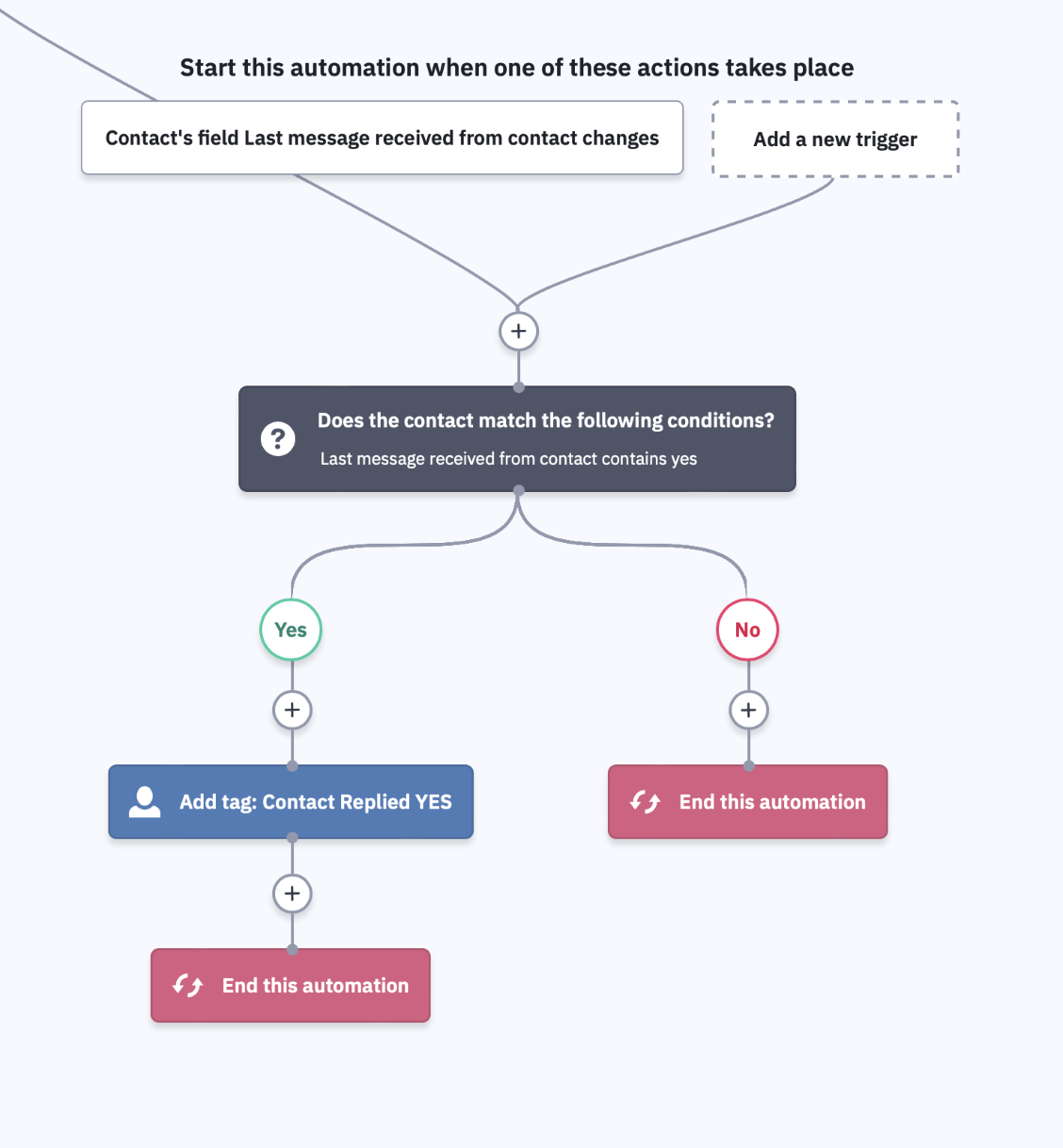
All setup and ready to go!
Should you have any questions please contact our support team with your account name and be sure to include ActiveCampaign Automation in the subject line and we'll be happy to assist.
Formatting numbers
Please be sure to format your numbers correctly.
US example
16501790371
06501790371
6501790371
UK example
447882894886
07882894886
Need more?
Log in to the Integration Gateway to send bulk messages to any of your ActiveCampaign lists now.