

Before you start
You need a BulkSMS account with credits and a Zapier account.
The BulkSMS app in Zapier is called BulkSMS.com. It has one action and three triggers:
| Type | Event | What it does |
|---|---|---|
| Action | Send Message | Sends an SMS from your BulkSMS account. |
| Trigger | Message Sent | Starts a Zap when a message is sent from your BulkSMS account. |
| Trigger | Message Received | Starts a Zap when your BulkSMS account receives a message, such as a reply. |
| Trigger | Delivery Report | Starts a Zap when a new delivery report is available for a sent message. |
Create a BulkSMS API token
Log in to your BulkSMS account and go to Settings > Developers.
Click Create API Token and give it a name you'll recognise, for example Zapier.
Copy the Token ID and Token Secret and keep them somewhere safe. The secret is only shown once.
We recommend using an API token rather than your BulkSMS username and password. Your password stays private, changing it won't break your Zaps, and you can revoke the token at any time to disconnect Zapier.
Connect your BulkSMS account
Log in to Zapier and open Apps.
Click + Add connection, search for BulkSMS.com and select it.
In the Connect to Zapier window, enter:
- Username: your BulkSMS Token ID
- Password: your BulkSMS Token Secret
Click Connect.
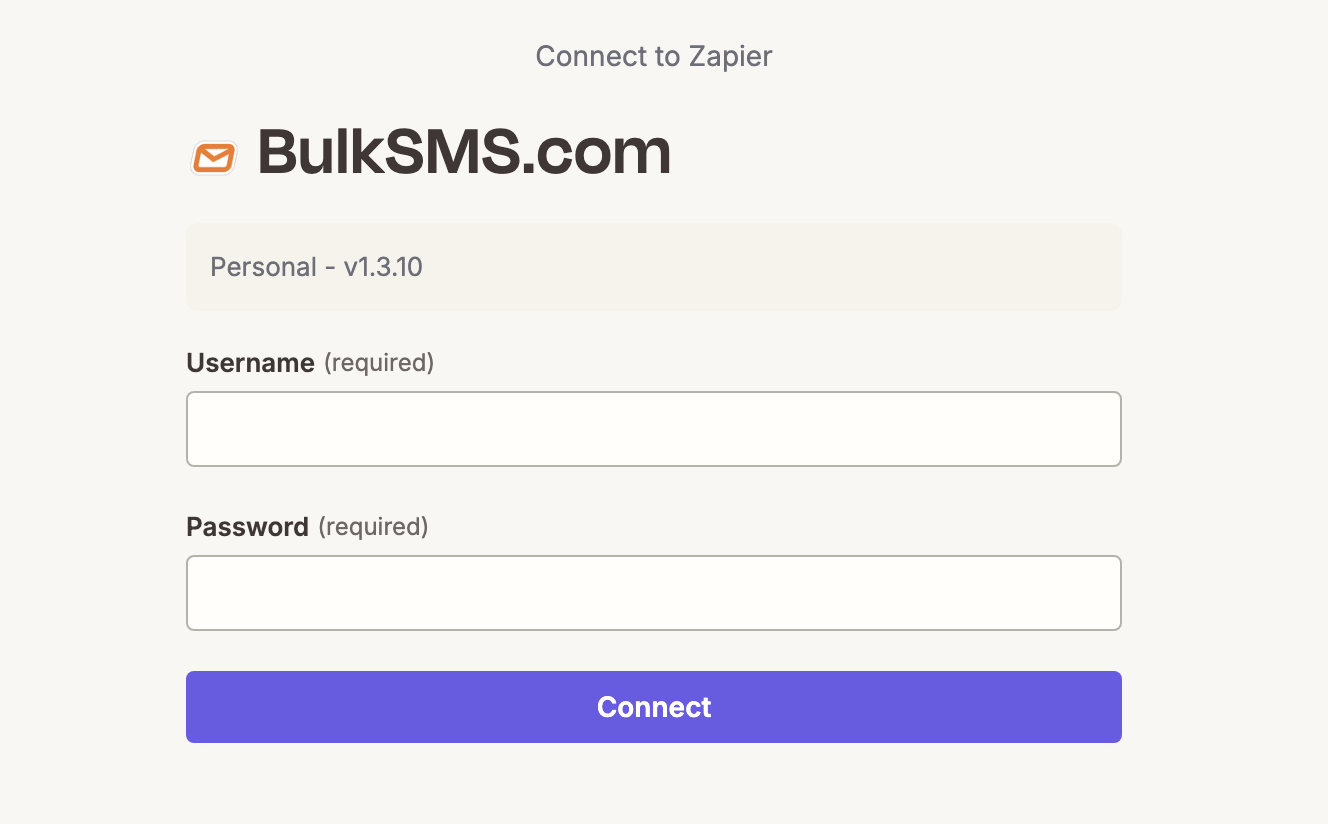
You can also connect your account the first time you add a BulkSMS step to a Zap.
Send an SMS with the Send Message action
Click + Create > Zaps, then set up the trigger in the app that should start the Zap. For example, a new row in Google Sheets or a new order in Shopify.
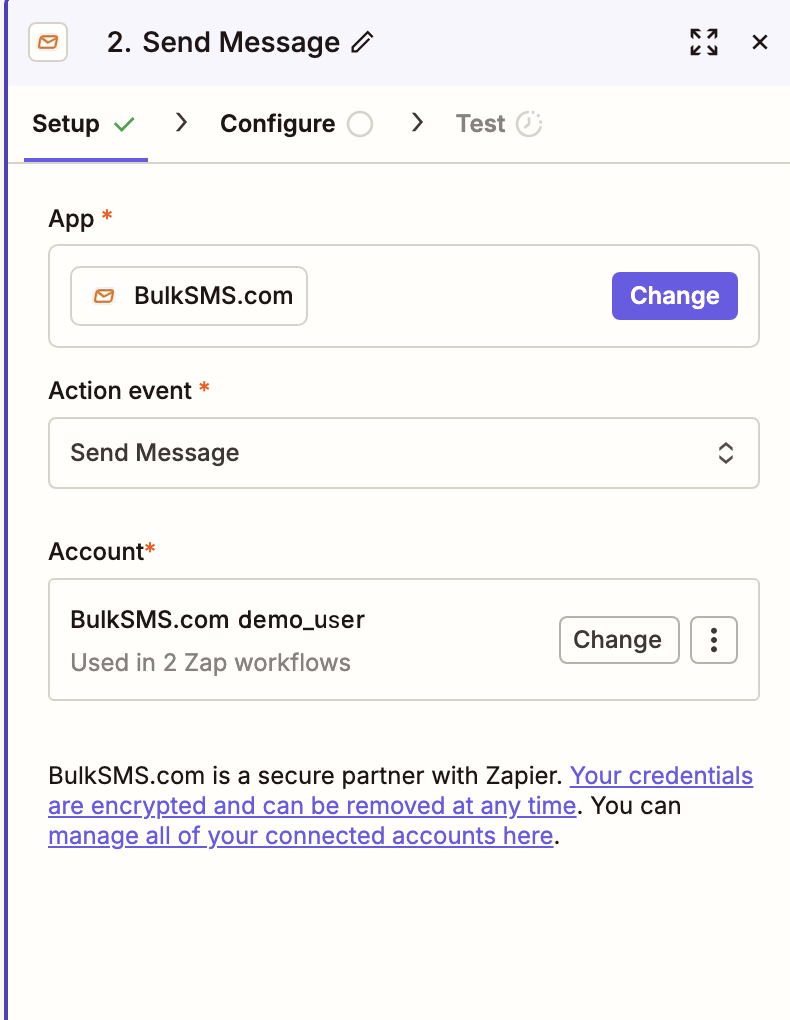
Add an action. On the Setup tab, choose BulkSMS.com as the app and Send Message as the action event, then select your BulkSMS account.
On the Configure tab, fill in the message fields. You can type text, or insert data from the trigger step (such as a customer's name or phone number).
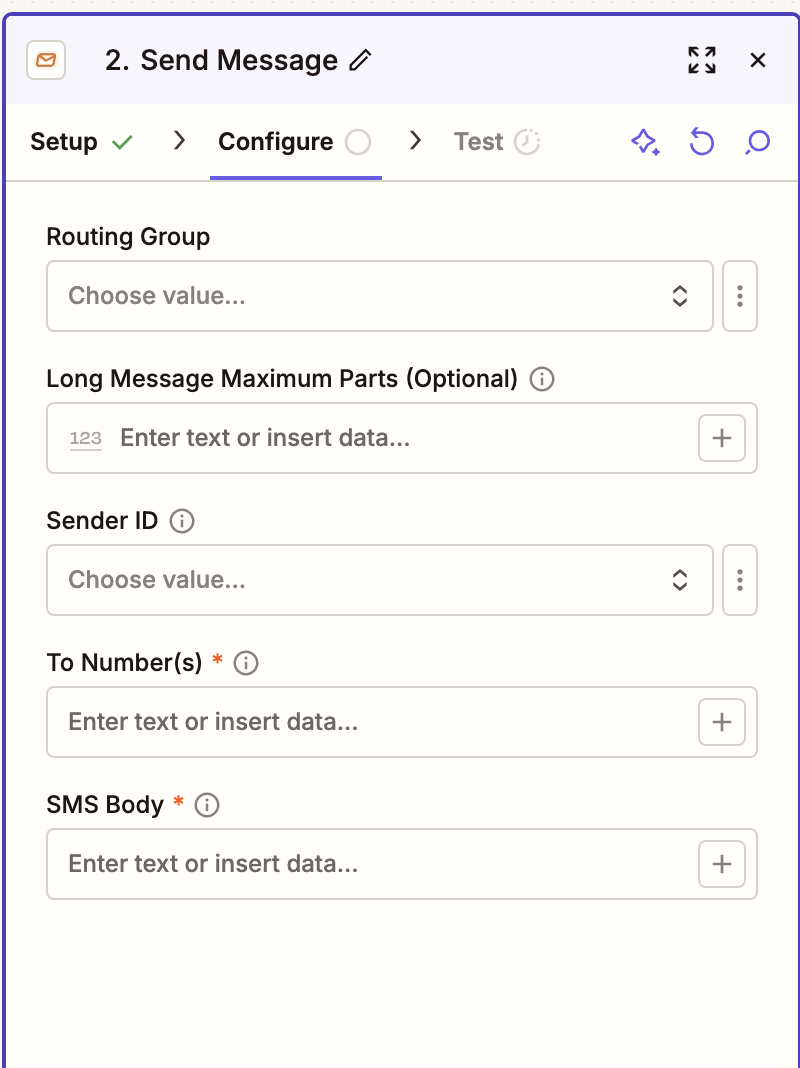
| Field | Required | What to enter |
|---|---|---|
| Routing Group | No | The BulkSMS route to send on: Economy, Standard or Premium. Leave it blank to use your account's default. |
| Long Message Maximum Parts | No | The most parts a long message can be split into. Each part is charged separately, so use this to cap the cost of a single message. The default is 3. |
| Sender ID | No | Who the message appears to come from. Leave it blank to use your account's default. |
| To Number(s) | Yes | Usually the phone number from your trigger step. Click + and insert the phone number field from the trigger app. You can also type specific numbers, separating them with commas, for example +447700900123,+447700900456. Numbers must be in international format. |
| SMS Body | Yes | The message text. Messages longer than 160 characters and Unicode characters (such as emoji) are supported. |
Click Test step to send a test message, check it arrives, then Publish the Zap.
Start a Zap from a BulkSMS trigger
Click + Create > Zaps, choose BulkSMS.com as the trigger app, then pick a trigger event: Message Sent, Message Received or Delivery Report.
Select your BulkSMS account and click Test trigger. Zapier needs a recent example to test with, so send a message, reply to one, or wait for a delivery report first.
Add the action you want in another app, using the message details from the trigger, then Publish the Zap.
Some example Zaps:
| Trigger | Example action |
|---|---|
| Message Received | Post customer replies to a Slack channel, or create a support ticket in your helpdesk. |
| Delivery Report | Record the delivery status of each message in a Google Sheet or your CRM. |
| Message Sent | Keep a log of every message sent from your account, for example as a note on the contact in your CRM. |
Troubleshooting
The connection fails or stops working: check that you entered the Token ID as the username and the Token Secret as the password, and that the token hasn't been revoked. Then reconnect the account under Apps in Zapier.
Messages aren't sent: check that the phone number is in international format and that your BulkSMS account has enough credits.
A trigger test finds nothing: make sure there is a recent message or delivery report in your BulkSMS account, then test again.
You can see every message and its delivery status in your BulkSMS account under Sent Messages, and each Zap run under Zap history in Zapier.
All setup and ready to go!
If you have any questions, please contact our support team. Include your account name and put Zapier in the subject line, and we'll be happy to help.